
BuzyBuddy documentation
BuzyBuddy is an AI chatbot for WordPress. It answers your customers on your website, WhatsApp, Telegram, Instagram and Facebook Messenger, using what you tell it about your business. When a customer needs a real person, you take over from one inbox, then hand the chat back.
It needs no third-party cloud: your site talks directly to your AI provider, Telegram and Meta, and every conversation stays in your own WordPress database.
Download BuzyBuddy 0.3.2 (zip)
Requirements: WordPress 6.0 or newer, PHP 7.4 or newer, and an API key from OpenAI, Google Gemini or Anthropic Claude. Telegram, WhatsApp, Messenger and Instagram also need your site to be online over HTTPS.
Contents
- Install the plugin
- Name your assistant
- Connect an AI provider
- Teach it about your business
- Match the chat to your brand
- Protection and alerts
- What your visitors see
- Voice chat
- Talk to customers yourself
- Connect Telegram
- Connect WhatsApp, Messenger and Instagram
- Troubleshooting
1. Install the plugin
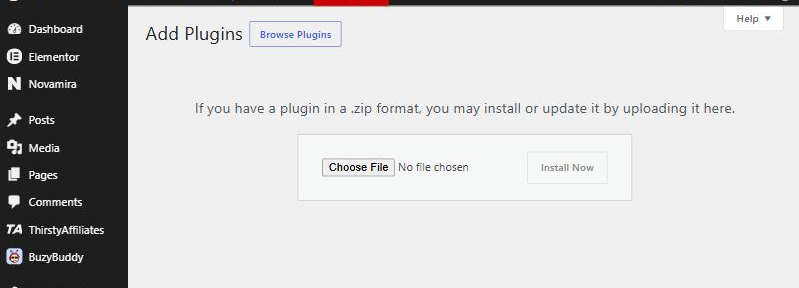
- Download the zip file with the button above. Don’t unzip it.
- In your WordPress dashboard, go to Plugins → Add New Plugin → Upload Plugin.
- Choose the zip file, click Install Now, then Activate.
A new BuzyBuddy menu with the bee icon appears in your dashboard. It has two pages: Inbox and Settings.
2. Name your assistant
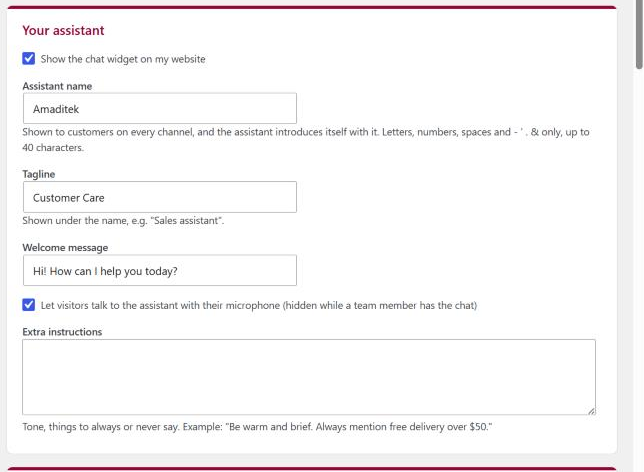
Open BuzyBuddy → Settings. The first section, Your assistant, sets who your customers talk to:
- Show the chat widget on my website: turns the chat button on or off.
- Assistant name: the name customers see on every channel. The assistant also introduces itself with it.
- Tagline: a short line under the name, such as “Sales assistant” or “Customer Care”.
- Welcome message: the first message visitors see when they open the chat.
- Microphone: lets visitors speak instead of typing (see Voice chat).
- Extra instructions: your tone and rules, for example “Be warm and brief. Always mention free delivery over $50.”
3. Connect an AI provider
BuzyBuddy needs an API key from one AI provider. You only need one:
- Google Gemini: aistudio.google.com → Get API key. Has a free tier, good for trying things out.
- OpenAI: platform.openai.com → API keys. Add billing credit first.
- Anthropic Claude: console.anthropic.com → API Keys. Add billing credit first.
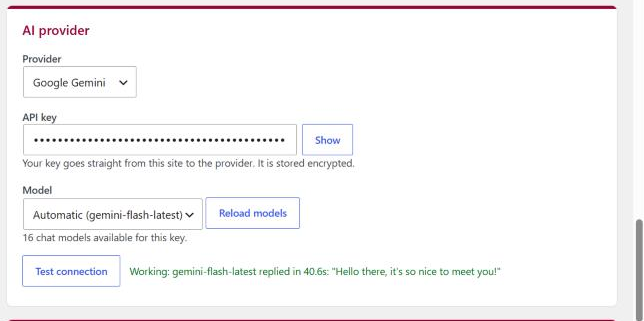
In the AI provider section:
- Pick your Provider and paste your API key. It stays saved in the field, hidden as dots. Click Show to check it.
- Choose a Model. The list loads live from your provider, so it only shows models your key can use. Automatic picks a fast, affordable model for you and is the best choice for most sites.
- Click Test connection. A green “Working” message with a sample reply means you’re ready.
- Click Save settings at the bottom of the page.
Your key is stored encrypted and goes straight from your site to the provider. If a model is busy, BuzyBuddy automatically retries once with a lighter model so your customers still get an answer.
4. Teach it about your business
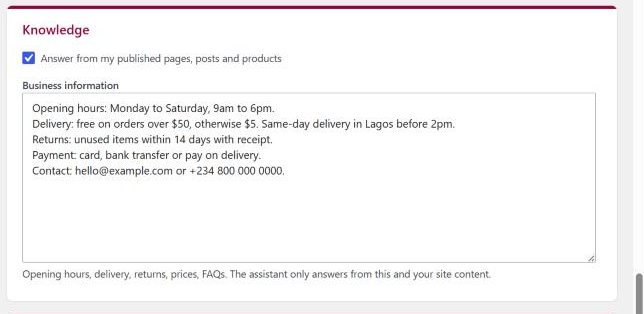
The assistant only answers from what you give it, so it won’t invent prices or policies. In the Knowledge section:
- Tick Answer from my published pages, posts and products to let it search your site, including WooCommerce products with their prices and stock.
- Fill in Business information with the things customers ask most: opening hours, delivery, returns, payment methods, contact details and FAQs. Short lines work best.
If a customer asks something that isn’t covered, the assistant says it isn’t sure and offers to connect them with your team.
5. Match the chat to your brand
The Branding section changes how the chat looks:
- Main colour: the header and the customer’s messages.
- Accent colour: the chat button, send button and the stripe under the header.
- Bot bubble colour: your assistant’s messages.
- Chat background: the top of the chat window, fading to white.
- Position: bottom right or bottom left of the screen.
- Assistant picture: choose an image from your Media Library, or leave it empty to use the BuzyBuddy bee.
- Use my website’s font: the chat uses your theme’s font.
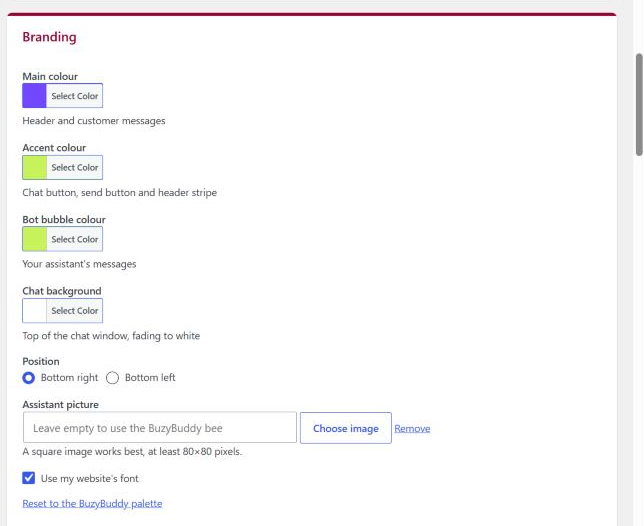
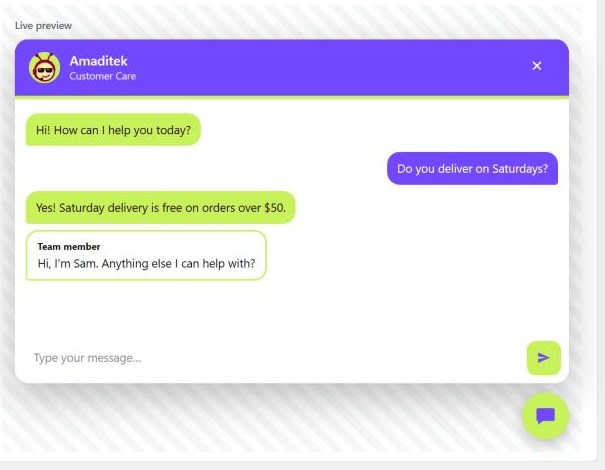
You only pick background colours. BuzyBuddy picks a text colour for each one so it stays easy to read. The Live preview below the controls updates as you change them, before you save.
6. Protection and alerts
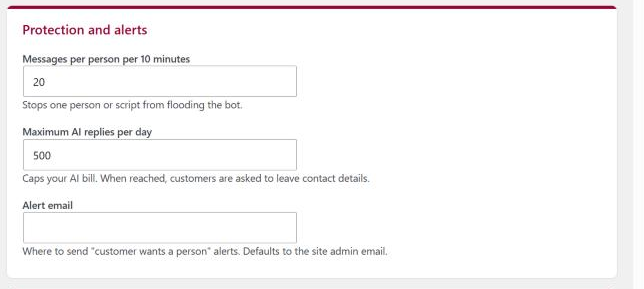
These settings stop anyone from running up your AI bill, and tell you when a customer needs you:
- Messages per person per 10 minutes: slows down anyone, or any script, sending too many messages. 20 is a good default.
- Maximum AI replies per day: a hard cap on AI replies. When it’s reached, customers are asked to leave their contact details instead.
- Alert email: where to send “a customer wants a person” emails. If empty, the site admin email is used.
7. What your visitors see
Once Show the chat widget on my website is ticked and saved, a round chat button appears in the corner of every page.
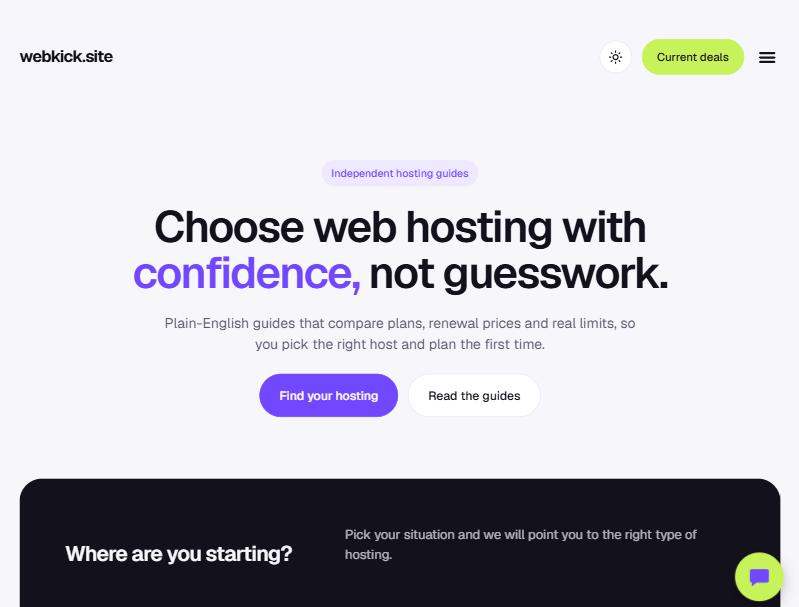
Visitors click it to open the chat, type a question and get an answer based on your business information. Their conversation is remembered for when they come back.
8. Voice chat
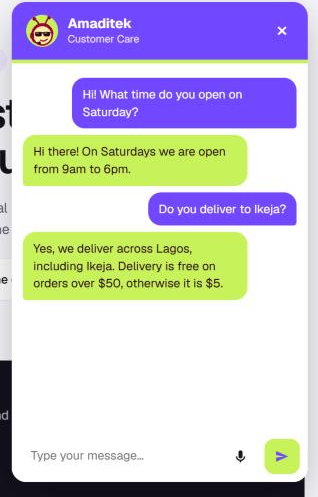
With the microphone setting on, a microphone button appears next to Send. Visitors tap it and speak; their words appear in the message box and are sent when they stop talking. The answer is then read aloud. If they type instead, replies stay silent.
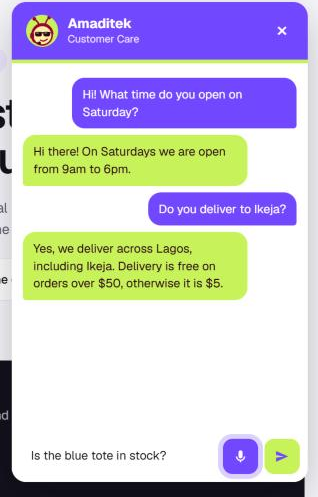
- Voice works in Chrome, Edge and Safari. Visitors on Firefox simply don’t see the microphone.
- The browser turns speech into text with its own speech service (Google, Microsoft or Apple). BuzyBuddy only receives the text.
- The microphone hides automatically while a team member has the chat, because voice is for talking to the assistant.
9. Talk to customers yourself
Every conversation from every channel arrives in BuzyBuddy → Inbox. Chats where the customer asked for a person show Wants a person and move to the top. Customers can ask by typing words like “human” or “talk to a person”, and you get an alert email.
Open a chat and click Take over to stop the assistant and reply yourself:
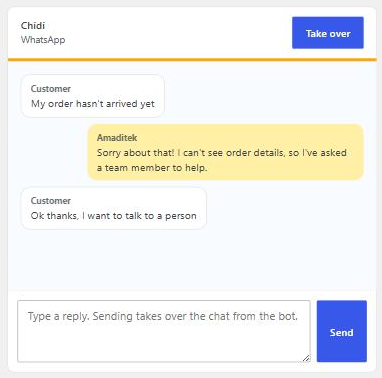
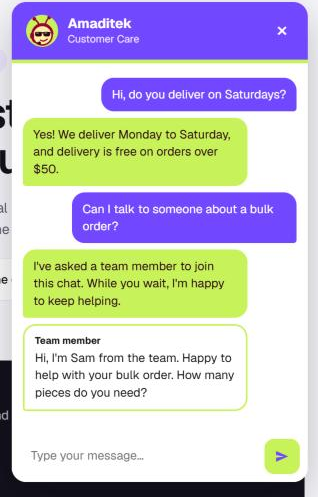
Type your reply and click Send. Sending a reply also takes over the chat, so the assistant never talks over you. When you’re done, click Hand back and the assistant carries on.
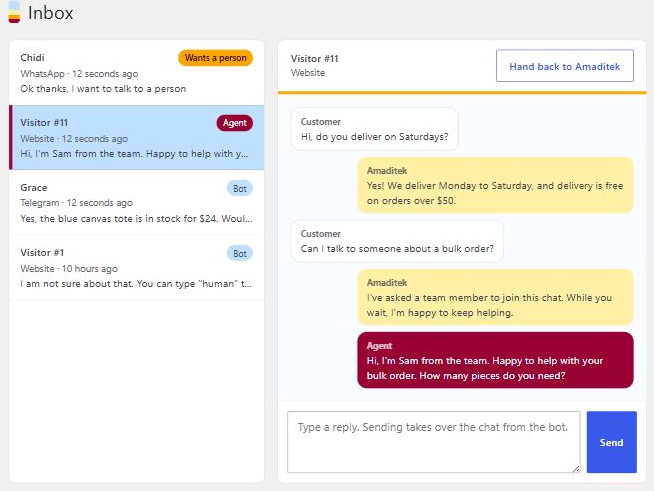
Your customer sees your reply labelled Team member, on whichever channel they used. The inbox refreshes on its own every 15 seconds, unless you’re typing.
10. Connect Telegram
- Open Telegram and start a chat with @BotFather.
- Send
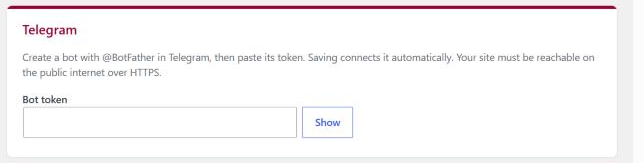
/newbot, choose a name and a username, and copy the token BotFather gives you. - Paste it into Bot token in the Telegram section and click Save settings.
BuzyBuddy connects the bot automatically, and a message at the top of the Settings page confirms it. Messages to your bot are now answered by your assistant and appear in your Inbox.
11. Connect WhatsApp, Messenger and Instagram
All three channels go through a Meta developer app. Meta reviews new apps before they can message the public, so allow a few days for approval.
- At developers.facebook.com, create an app and add the products you need: WhatsApp, Messenger and/or Instagram.
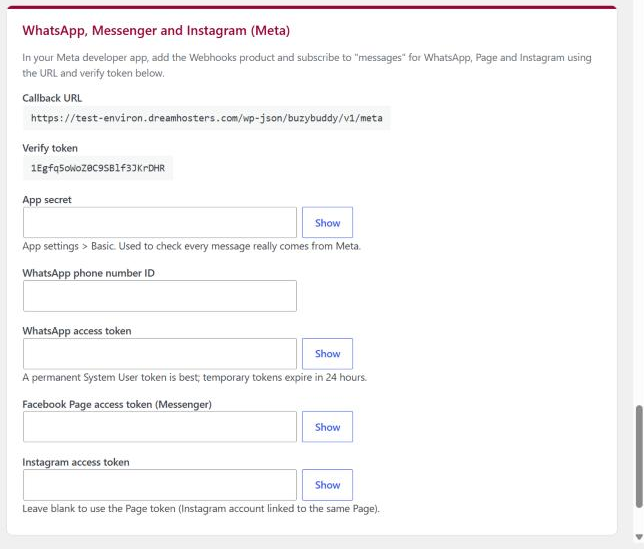
- Add the Webhooks product. Use the Callback URL and Verify token shown in BuzyBuddy’s Meta section, and subscribe to messages for WhatsApp, Page and Instagram.
- Copy your App secret from App settings → Basic. BuzyBuddy uses it to check that every message really comes from Meta.
- For WhatsApp, copy the Phone number ID and an access token. A permanent System User token is best; temporary tokens expire after 24 hours.
- For Messenger, copy your Facebook Page access token. For Instagram, use its own token, or leave it blank to reuse the Page token when the Instagram account is linked to the same Page.
- Paste everything into BuzyBuddy and click Save settings.
12. Troubleshooting
When something goes wrong, a Last problem note at the top of the Settings page explains it. The Test connection button is the quickest way to check your AI setup:
- “Sorry, I’m having trouble answering right now”: check the Last problem note. An invalid key (401) means the key was copied wrong; “insufficient quota” (429) means your provider account needs credit.
- “Model is no longer available” or “model not found”: click Reload models and choose another, or set the model to Automatic.
- Slow replies: free AI plans can take 15 to 40 seconds when they’re busy. A paid plan, or a “lite” or “mini” model, is usually much faster.
- Telegram or Meta not replying: your site must be on the public internet over HTTPS. A site running only on your own computer can’t receive their messages.
- The chat button doesn’t appear: make sure Show the chat widget on my website is ticked and saved, then clear any page cache.
Privacy
Conversations, including messages, names and channel IDs, are stored in your WordPress database. To answer, BuzyBuddy sends the customer’s message, recent conversation history, your instructions and matching business information to the AI provider you chose. Deleting the plugin deletes its conversations and settings.