
SwiftInvoice documentation
SwiftInvoice is a free online invoice generator, live at swiftinvoice.space. Freelancers and small businesses sign up, add their clients, create invoices from polished templates, share them with a link or PDF, and track what’s been paid.
Under the hood it’s WordPress with two parts I built together: the SwiftInvoice theme, which draws every page and app screen, and the SwiftInvoice plugin, which runs accounts, invoices, plans and payments. This guide covers both: how to use the app, then how the theme and plugin are installed and run.
Open swiftinvoice.space Watch the video guide
Contents
Using SwiftInvoice
- Create an account
- Set up your business
- Add clients
- Create an invoice
- Choose a template
- Save, send and share
- Record a payment
- Track everything on the dashboard
- Free and Paid plans
Running the site (theme and plugin)
- How it’s built
- The SwiftInvoice theme
- The SwiftInvoice plugin
- Taking payments for upgrades
- Making a user Premium manually
- Maintenance
1. Create an account
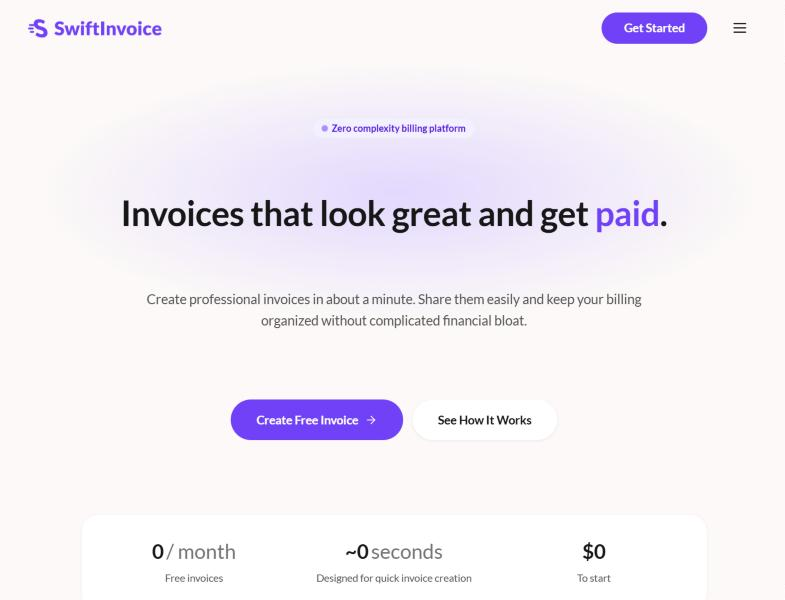
Go to swiftinvoice.space and click Get Started or Create Free Invoice.
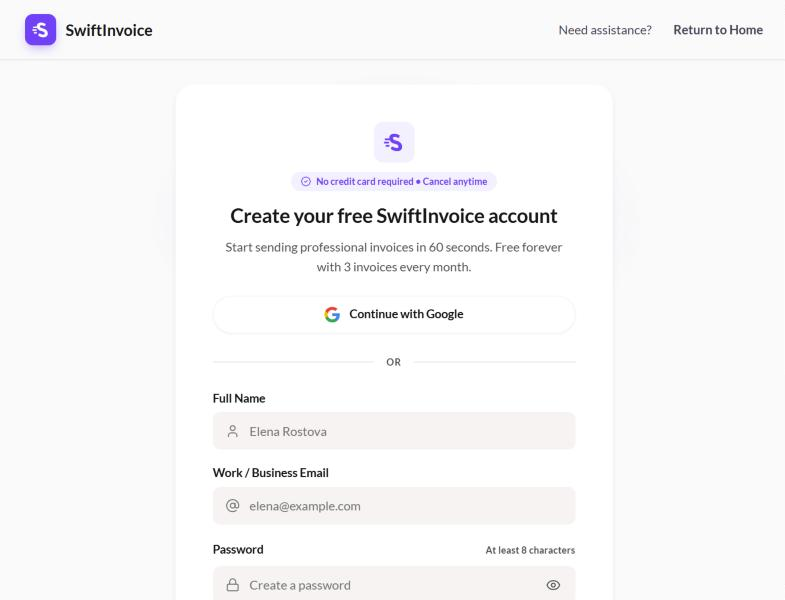
Sign up with Google, or with your name, business email and a password of at least 8 characters. No credit card is needed. SwiftInvoice emails you a link to verify your address before you start.
2. Set up your business
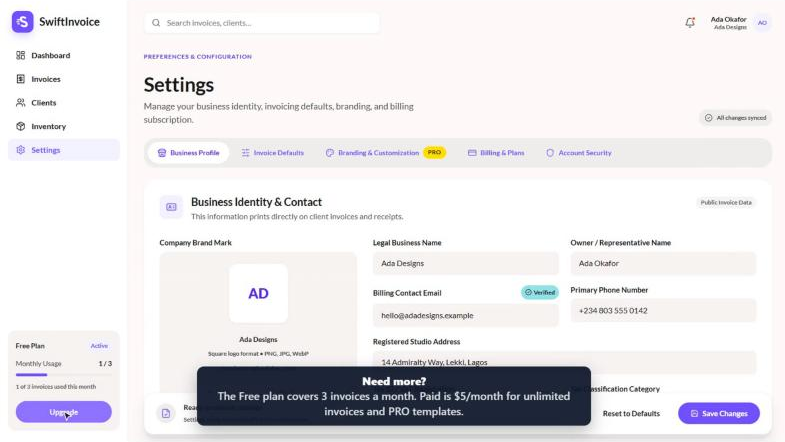
Open Settings in the left menu and fill in your Business Profile: business name, owner name, billing email, phone, address and logo. These details print on every invoice, so it’s worth doing first.
The other tabs set your invoice defaults (currency, tax, payment details), branding, plan and account security. Click Save Changes when you’re done.
3. Add clients
Open Clients and click to add one. Enter the client’s name or organisation and billing email; phone, address, country and currency are optional but save typing later. Click Save Client.
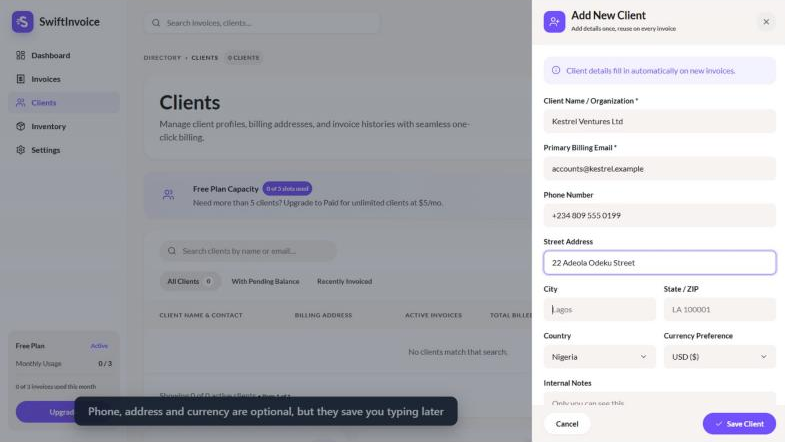
The Free plan holds up to 5 clients; Paid is unlimited. You can also save the products and services you sell under Inventory, so you can add them to invoices in one click.
4. Create an invoice
Open Invoices and create a new one. Pick a client, check the invoice number, currency, issue date and due date, then add line items: a description, quantity and rate for each thing you’re charging for.
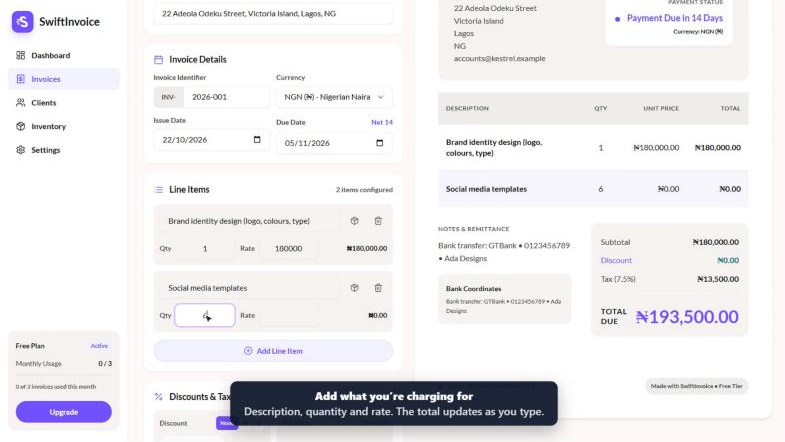
Below the line items you can add a discount, tax and notes such as your bank details. Totals are always calculated on the server, so they’re exact to the last kobo or cent. The editor saves as you type.
5. Choose a template
Under Template Design at the top of the editor, pick a look. The preview changes straight away.
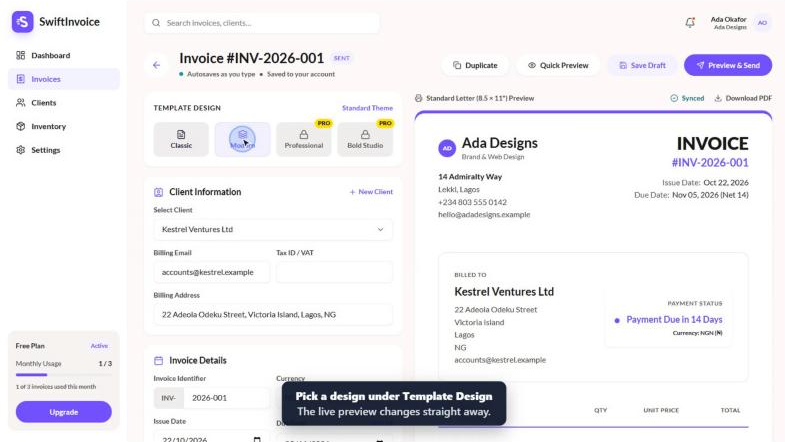
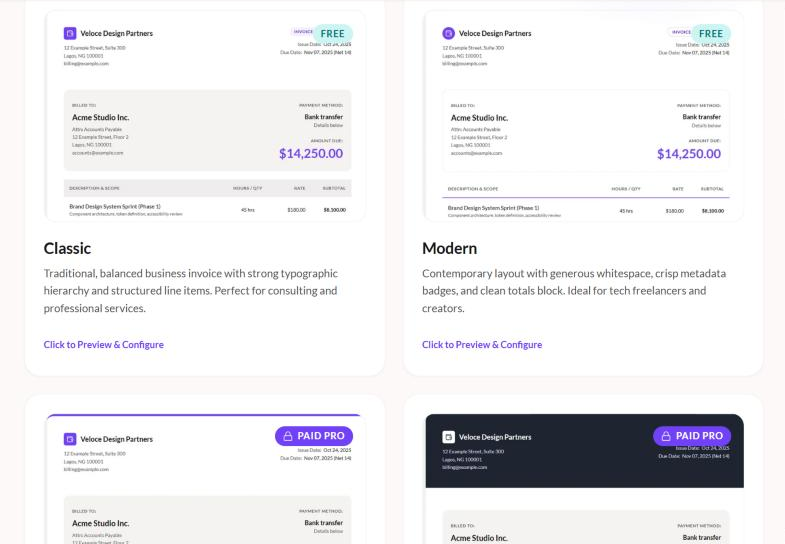
You can see every template on the templates page:
6. Save, send and share
When the invoice looks right, choose what to do with it:
- Save Draft keeps it private, so you can finish it later.
- Preview & Send marks it as sent and gives you a link to share.
- Duplicate copies it, which is handy for repeat work.
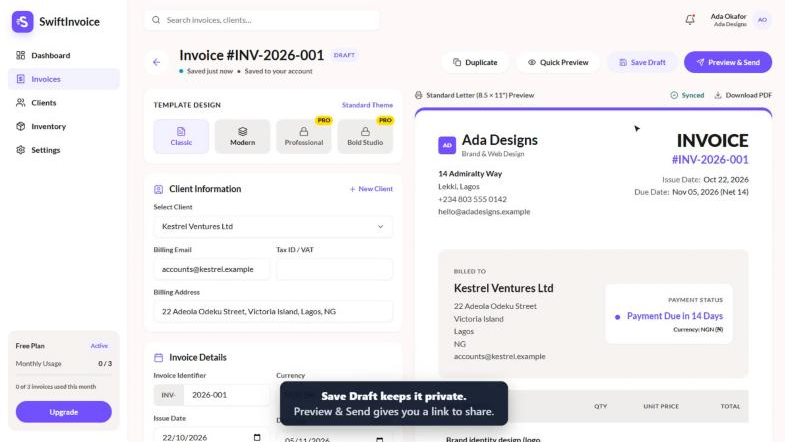
Every sent invoice gets its own public link, like swiftinvoice.space/i/…. Send it by WhatsApp, email or text. Your client opens it in any browser, with no account needed, and can print it or save it as a PDF.
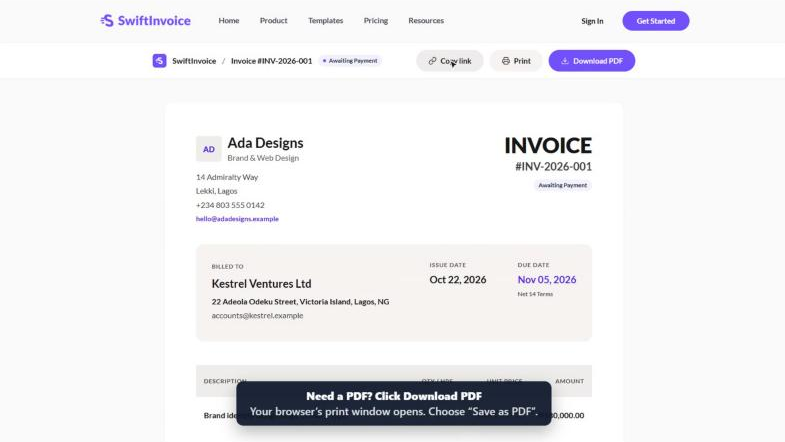
The first time someone other than you opens the link, the invoice is marked Viewed, so you know it’s been seen. Link previews from WhatsApp, Slack or email scanners don’t count.
7. Record a payment
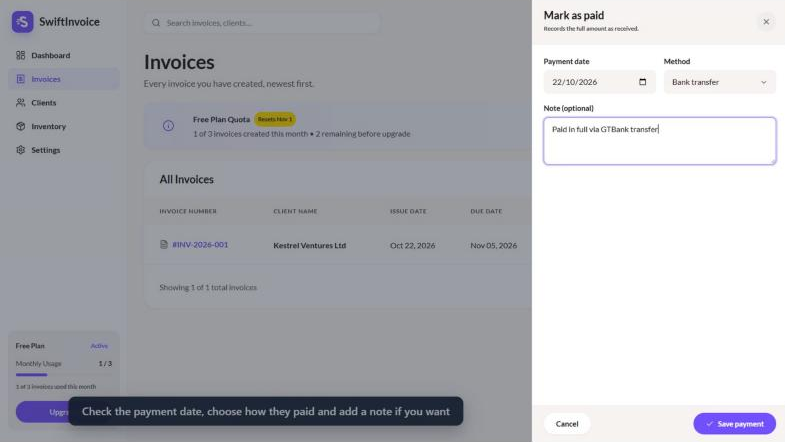
Your clients pay you directly, by bank transfer, card or cash, not through SwiftInvoice. When the money arrives, open the invoice and click Mark as paid. Check the payment date, choose the method, add a note if you like, and click Save payment.
8. Track everything on the dashboard
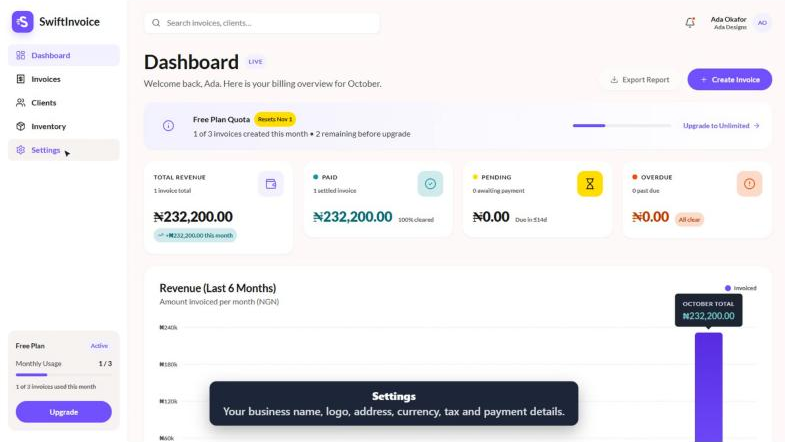
The Dashboard shows your total revenue, what’s paid, pending and overdue, and a chart of the last 6 months. On the Free plan it also shows how many of this month’s 3 invoices you’ve used.
9. Free and Paid plans
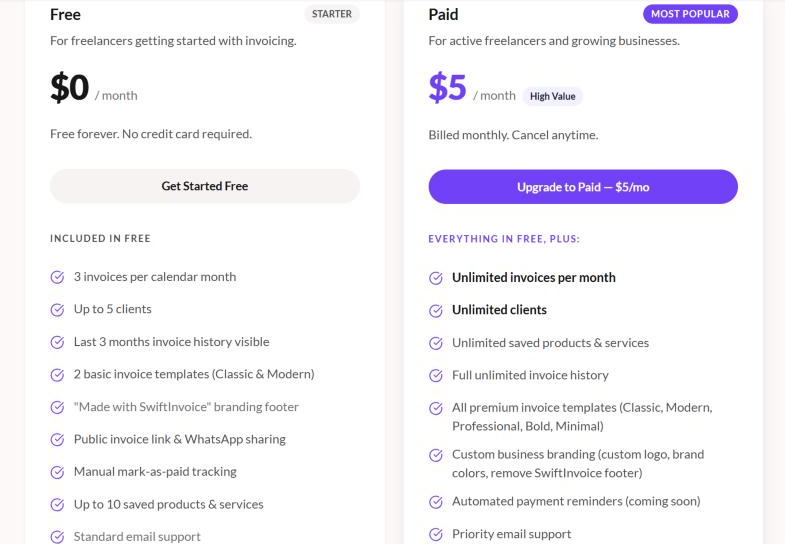
SwiftInvoice is free to start. Upgrade to Paid for $5 a month (or the local equivalent) when you need more; you can cancel any time. See swiftinvoice.space/pricing.
| Free | Paid | |
|---|---|---|
| Invoices | 3 per calendar month | Unlimited |
| Clients | 5 | Unlimited |
| Saved products (Inventory) | 10 | Unlimited |
| Templates | Classic, Modern | All |
| “Made with SwiftInvoice” footer | Shown | Hidden |
To upgrade, click Upgrade in the app’s sidebar, choose your currency and pay with Paystack or Flutterwave on their secure checkout.
10. How it’s built
swiftinvoice.space runs on WordPress as two parts that work together:
- SwiftInvoice theme (folder
swiftinvoice): every page, the header and footer, and the app screens, built from custom Elementor widgets. It shows demo data until the plugin is active. - SwiftInvoice plugin (folder
swiftinvoice): accounts, clients, the products inventory, invoices, public invoice links, plan limits, payments for upgrades, the contact form and SEO files.
| Requirement | Version |
|---|---|
| WordPress | 6.6 or newer |
| PHP | 8.1 or newer |
| Elementor and Elementor Pro | Required by the theme (header, footer and app layout) |
| Fluent Forms, FluentSMTP | Contact form and email delivery |
| Nextend Social Login | Optional: “Sign in with Google” |
| Yoast SEO | Optional: sitemap and meta tags |
11. The SwiftInvoice theme
Install
- Upload
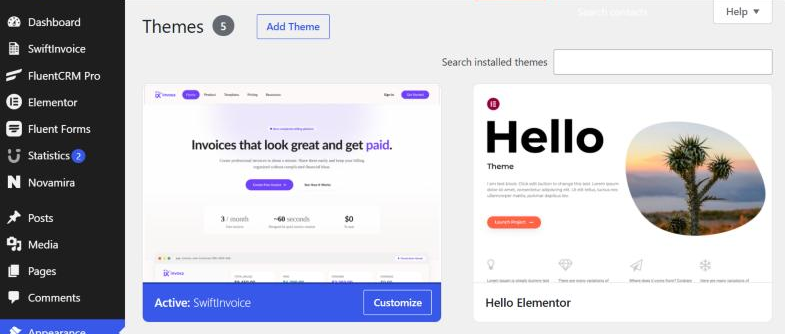
swiftinvoice-theme.zipunder Appearance → Themes → Add New → Upload, then activate it. - Install and activate Elementor and Elementor Pro.
- Write the design tokens (colours, fonts, spacing, motion) into the Elementor Kit, then import the menus, pages and Theme Builder templates:
wp swiftinvoice setup
wp swiftinvoice import-templates                 # menus, pages and templates
wp swiftinvoice import-templates --only=pages    # pages only, after a theme update
Importing updates pages by their template key, so running it again refreshes the built pages. Edits made to those pages in Elementor are replaced, so re-apply them or make them in the templates.
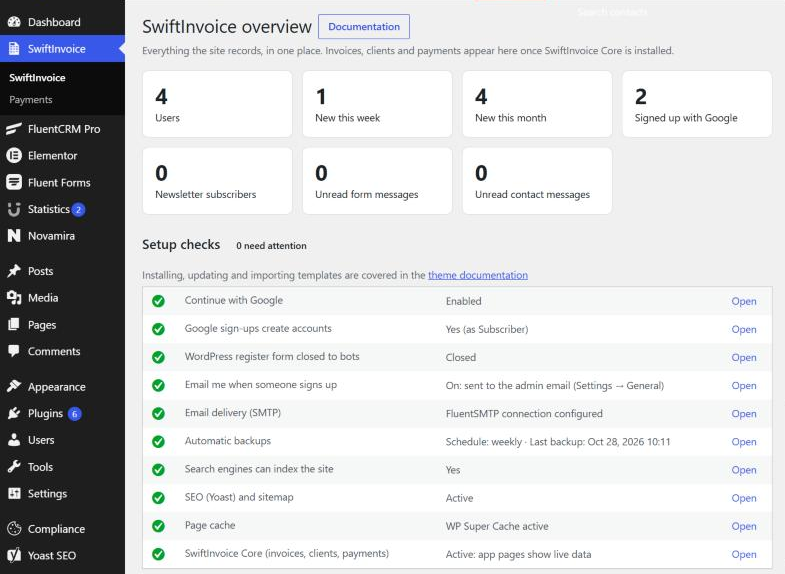
Admin screen. SwiftInvoice in the wp-admin menu is the theme’s overview: user and sign-up counts, form messages, setup checks (each shows what needs attention and links to the fix) and quick links. The Users list gains “Signed up with”, “Registered” and “Last login” columns.
Editing pages. Open any page with Elementor. SwiftInvoice widgets sit in their own panel groups (Foundations, Marketing, Mockups, App, Auth, Invoice), and every visible text, link and style is a normal control. App screens show demo values in the editor and live values on the site.
Search visibility. App, sign-in, onboarding and invoice pages are marked noindex, so search engines skip them.
12. The SwiftInvoice plugin
Install. Upload swiftinvoice.zip under Plugins → Add New → Upload and activate it. Activation creates the database tables and the invoice link rules (/i/…/). Tables upgrade automatically after plugin updates.
What it stores
| Table | Holds |
|---|---|
wp_swiftinvoice_clients |
Each user’s clients |
wp_swiftinvoice_invoices |
Invoices, totals, status and the public link token |
wp_swiftinvoice_invoice_items |
Line items |
wp_swiftinvoice_payments |
Payments recorded with “Mark as paid” |
wp_swiftinvoice_events |
History such as sent, viewed and paid |
wp_swiftinvoice_products |
Each user’s saved products and services (Inventory) |
Business settings are stored per user in the swiftinvoice_business user meta. Money is stored in minor units (kobo, cents). Deleting a user in wp-admin also deletes their clients and invoices.
Shortcodes. [swiftinvoice_contact_form] shows the contact form (used on Contact). [swiftinvoice_upgrade] shows the upgrade checkout (used on /app/upgrade/).
REST API. The app talks to /wp-json/swiftinvoice/v1/. Every route needs a signed-in user except sign-up, email verification and the payment webhooks.
| Route | Methods |
|---|---|
/settings, /settings/logo |
GET, PUT · POST |
/clients, /clients/{id} |
GET, POST · DELETE |
/products, /products/{id} |
GET, POST · DELETE |
/invoices, /invoices/{id} |
GET, POST · GET, PATCH |
/invoices/{id}/send|pay|void|duplicate |
POST |
/dashboard |
GET |
/auth/signup, /auth/verify, /auth/resend-verification |
POST · GET · POST |
/billing/webhook/paystack|flutterwave |
POST (signed by the provider) |
SEO files. The plugin writes robots.txt (keeping crawlers out of /app/, /i/, /onboarding/ and the API), sets the site icon and default share image, and adds organisation schema to Yoast’s output.
13. Taking payments for upgrades
Customers upgrade on /app/upgrade/, choosing a currency and Paystack or Flutterwave, and pay on the provider’s own checkout. Set it up under SwiftInvoice → Payments in wp-admin:
- Paste each provider’s secret key. Saved keys are never shown again; leave the field empty to keep the current one.
- Add plans, one line per currency:
CURRENCY|monthly price|plan ID, for exampleNGN|7500|PLN_abc123orUSD|5|12345. - Copy the webhook URL shown on that screen into the provider’s dashboard. For Flutterwave, also set the same secret hash in both places.
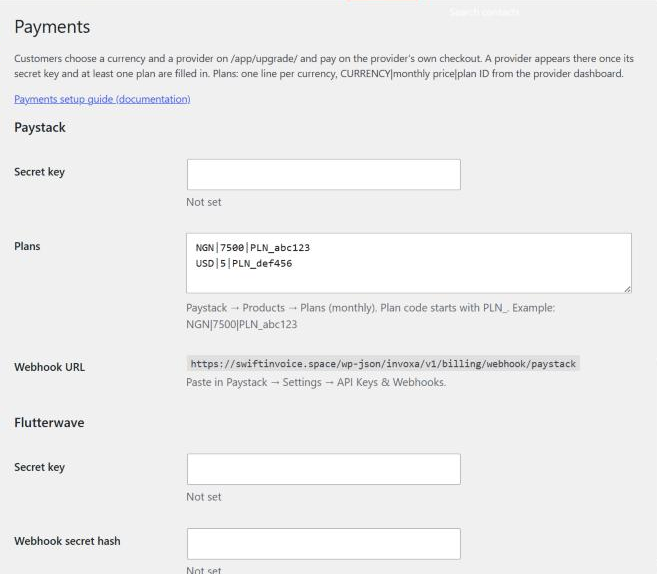
A provider appears at checkout once its key and at least one plan are saved. Keys can also be set in wp-config.php as SWIFTINVOICE_PAYSTACK_SECRET, SWIFTINVOICE_FLUTTERWAVE_SECRET and SWIFTINVOICE_FLUTTERWAVE_HASH. A confirmed payment (the webhook, then a check with the provider’s API) switches the user to Paid.
Payments from your users’ own clients don’t go through SwiftInvoice; users record those with Mark as paid.
14. Making a user Premium manually
- In wp-admin, go to Users and click the user.
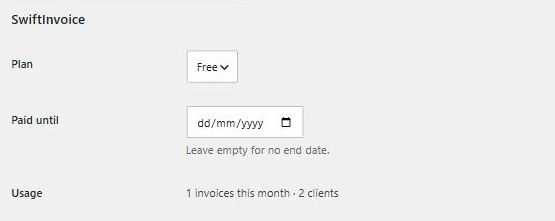
- In the SwiftInvoice section, set Plan to Paid.
- Optionally set Paid until. Leave it empty for no end date.
- Click Update User. The Plan column on the Users list confirms the change.
15. Maintenance
- Updating: upload the new zip; WordPress offers to replace the current version. After a theme update, run
wp swiftinvoice import-templates --only=pagesif the release notes say pages changed, then clear Elementor’s cache under Elementor → Tools → Regenerate CSS. - Email: FluentSMTP sends account and contact emails. Use its test email after changing mail settings.
- Backups: UpdraftPlus backs up files and the database, including the SwiftInvoice tables.
- Help videos: the user guide lives at swiftinvoice.space/how-to; its videos are in
wp-content/uploads/walkthroughs/. - Domain: the site lives at swiftinvoice.space. If you ever move it, update the webhook URLs in Paystack and Flutterwave (shown on SwiftInvoice → Payments), rewrite
robots.txtwithwp eval "SwiftInvoice_Seo::write_robots();", and resubmit the sitemap in Google Search Console.